Posts

Fixing Tamper Protection Blob Error 65000 using Microsoft Intune

Image
I recently encountered an issue with enabling Tamper protection as part of the implementation of Defender for Endpoint in one of customer's tenant and considering how unusual the behavior was and how I didn't encounter this before, I decide to blog my experience. If you have been battling with the same issue, then this blog may just help you. There are multiple ways to enable Tamper protection as part of MDE. One can enable at a tenant level using Defender portal or do it using Intune. I normally choose the Intune, especially when dealing with endpoints to maintain uniformity with other Defender policies being managed by Intune. However, in this particular instance, the issue started cropping randomly on some endpoints where tamper protection would not enable and throw an error code 65000, as show below. Additionally, the status in Defender will report as Unknown instead of reporting Active or something else like EDR in block mode to suggest that Defender Antimalware is running...
Enable & manage Global Secure Access for Microsoft 365 Apps on Android

Image
  With ever so changing IT landscape of how businesses operate now, the concept of work from anywhere is now the new reality. This is resulting in applications and data moving into the cloud, thus giving rise to the need for an identity-aware, cloud-delivered network perimeter for the modern workforce. To address this new requirement, Microsoft has released Global Secure Access, which is Microsoft's own Security Service Edge (SSE) solution.  What is Global Secure Access? Note: At the time of writing this blog, Global Secure Access is still in Preview. Global Secure Access is the unified location in the Microsoft Entra admin center which comprises of both Microsoft Entra Internet Access and Microsoft Entra Private Access as part of Microsoft's Security Service Edge solution. It is built upon the core principles of Zero Trust to use least privilege, verify explicitly, and assume breach. a.  Microsoft Entra Internet Access Microsoft Entra Internet Access secures access to Mi...

MDE Device Tagging through Dynamic Asset rule management using Microsoft Defender XDR

Image
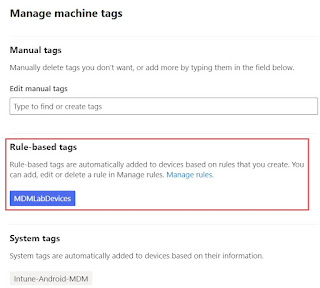
  My last couple of blog posts have been about MDE device tagging where I covered bulk tagging for macOS and iOS\iPadOS devices using Intune. In this blog post, I will be covering another method for bulk tagging which can work independently of any MDM solution. Asset rule management in Microsoft Defender Asset rule management in Microsoft Defender has been around for some time for assigning device tags based on certain criteria. This is done through asset rules that can be based on device name, domain, OS platform, internet facing status, onboarding status and manual device tags. Here is how one can go about creating asset rules: 1. Navigate to Microsoft Defender portal . 2. In the navigation pane, select Settings > Microsoft Defender XDR > Asset Rule Management. 3. Select Create a new rule. 4. Enter a Rule name and Description. 5. Select Next to choose the conditions you want to assign. I am pulling in al end user OS platforms. 6. Select Next and choose or create the ...

New Microsoft Defender app and bulk tagging for iOS\iPadOS using Intune

Image
  Credits: Microsoft In my recent blog about device tagging for macOS devices in Defender , I had mentioned about covering tagging feature for iOS\iPadOS platform as well. In this blog, I will cover the specifics for achieving this and my experience overall. The new Microsoft Defender apps Before we get into tagging, I want to touch base upon the recent change involving the renaming and feature offering of the MDE app both in Apple  and Google Play stores. The MDE app is now called Microsoft Defender: Security  in Apple store and is called Microsoft Defender: Antivirus in Google Play store, thus enabling All-in-one security functionality across both personal and work accounts.  Under the personal account, Microsoft Defender will function as a multidevice security app 'Microsoft Defender for individuals' allowing individuals and families to protect their data and devices by offering malware protection, timely security notifications, security tips, and reco...

Create and manage Microsoft Defender for Endpoint Device tags for macOS

Image
I recently worked on an implementation project for Microsoft Defender for Endpoint for macOS devices and while I will love to cover all the bells and whistles involving the setup, for now I will just focus on one particular aspect of the setup i.e. MDE device tags. What is an MDE Device Tag anyway? Tags are used primarily to label and classify devices in an environment. This helps in making the searching easy and streamlining the designating rules to specific groups or categories. Device tags support proper mapping of the network, enabling you to attach different tags to capture context and to enable dynamic list creation as part of an incident in Defender. Here are some common uses of device tags - 1. Device Filter - One can be use a filter in the Device inventory view, or to group devices. 2. RBAC - You can create device groups in Defender using tags for the purpose of enforcing Role Based Access Control in the Defender Portal. 3. Device Grouping - You can create device groups in Def...

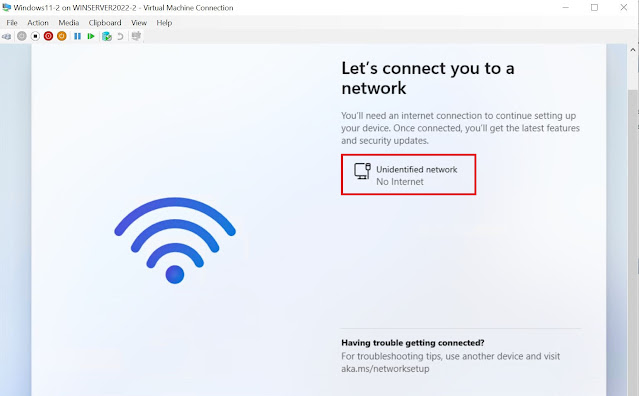
Windows Autopilot - Fixing Windows 11 VM 'No Internet' issue hosted in a Windows Server OS Hyper-V

Image
In my line of work, I have to work with all kind of devices spread across multiple OS platforms. Now when it comes to building and testing a configuration on Windows endpoints, I would normally use a physical device or in absence of it, I will turn to a virtual setup involving a Windows 10\11 VM or most recently a Cloud PC. For sometime now, I have been hosting the Windows 10\11 VM in a Hyper-V installed on a Windows 10 Azure VM enabled & configured for nested virtualization. While this got the job done, it couldn't really match the performance of what Hyper-V running on Windows Server OS could deliver. I recently setup a new test tenant and used it as an opportunity to cleanup and introduce some new configurations. I decided to setup a Windows Server 2022 OS VM and installed Hyper-V on it then created the guest Windows 11 VM inside it. While I followed the usual steps of putting the configuration together like I did before, I did encounter some issues and learnt some new thing...