Posts

Showing posts with the label Mempowered

Enable Enhanced Phishing Protection on Windows 11 22H2 using Intune
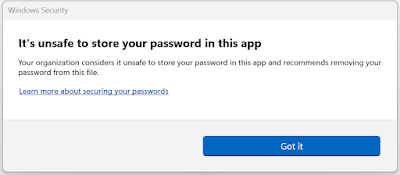
Image
  Microsoft recently released next version of  Windows 11 known as 22H2. This feature update comes with many new security capabilities and one of such capability is Enhanced Phishing Protection. As part of Microsoft Defender SmartScreen, Enhanced Phishing Protection helps in protecting Microsoft school or work passwords against phishing and unsafe usage on sites and apps. It currently supports the following 3 scenarios: 1. If users type their work or school password on any Chromium browser, into a site deemed malicious by Microsoft Defender SmartScreen, Enhanced Phishing Protection will alert them. It will also prompt them to change their password so attackers can't gain access to their account. 2. Reusing work or school passwords on sites and apps will prompt them to change their password. 3. Storing plaintext passwords in text editors such as Notepad or Office applications like Word, will result in a warning and a recommendation for removing the password from the file. If yo...

Issue involving OneDrive 2.0 Known folder move and Settings Catalog in Intune

Image
Are you deploying OneDrive configuration including Known folder move using Settings Catalog and wondering why your known folders Documents and Pictures are not synching like Desktop , then you are not alone. Ever since settings catalog was introduced, I have practically moved all my device policies over, where ever possible of course. Naturally, I moved OneDrive settings as well, but soon realized that this may not be such a good idea. At least not until Microsoft addresses the issue. As of writing this blog, it is not possible to configure all known folder move configuration in settings catalog. Currently the following settings are available under Settings Catalog - When you configure these settings and assign them, only the Desktop known folder will get enabled for sync, leaving the other 2 known folders Documents and Pictures un-managed. To fix this natively in Intune, the only option is to use built Administrative template. This is because the built-in administrative templates...

Autopilot and ESP policy issues

Image
I recently dealt with an Autopilot issue which prompted me to capture my experience in this blog. Now issues during Autopilot provisioning is fairly common. Especially when Microsoft introduces changes in the backend that affects the Autopilot provisioning process. Now I am not sure if the issue I experienced was a result of some changes made by Microsoft or not, but it certainly affected some tenants as many others reported similar issues on Twitter . Let me explain the issue in detail. In my case it started with AP timing out with the infamous 0x800705b4 error. Running Get-AutopilotDiagnostics led me to believe that something was wrong with how policies were getting evaluated as ESP showed as not assigned. This is odd. Why would ESP not show assigned when the very same policy had been running for weeks without any issues? What is even more strange that the diagnostics showed ESP as blocking. That would explain the timeout error I was seeing. To test my theory of a possible issue wit...

Chrome Browser Enterprise Security Controls using Intune

Image
Just like Microsoft provides security benchmark for Edge, Google does the same for Chrome. Well sort of. While Microsoft provides .admx templates along with readily importable GPO xml files, Google just provides admx templates. Unless you manage chrome browser settings using Google's own browser cloud management service , you are pretty much left with the task of configuring these settings manually. I recently configured the settings as part of security hardening process for browsers in general and thought of sharing the details here to make it convenient for others. Let's see how you can configure these settings using Intune. ADMX template in Intune Ever since Microsoft added Google's admx templates in Intune settings catalog in March 2022, things have never been simpler. If you are unfamiliar with this addition then you can head over to one of my previous blog  posts to know more about it. Chrome Browser Enterprise Security Controls Google has shared an enterprise securi...

Azure AD Conditional Access - Require Azure AD joined device to be compliant

Image
Recently, a customer asked me if there was a way to restrict access to corporate data on Azure AD joined Windows 11 devices only. They didn't want the existing conditional access policy to apply which required a Hybrid joined device to be compliant as they were moving away from Hybrid join identity for good. This intrigued me as there is actually no direct setting in the conditional access conditions & grant controls which covers Windows 11 & Azure AD joined states explicitly. So how do you grant access just to Azure AD joined Windows 11 devices? The answer is by using Filter for devices and specific grant controls.  In case you are unfamiliar with Filter for devices feature then you should know that Azure AD uses device authentication to evaluate device filter rules. For a device that is unregistered with Azure AD, all device properties are considered as null values and the device attributes cannot be determined since the device does not exist in the directory. Therefore,...