Posts

Intune: UAC Elevation Prompt Behavior for Standard Users

Image
Implementing and maintaining a good security posture is an integral part of overall IT security governance for most organizations now. While you want to harden the security of infrastructure and give least number of privileges to your end users, sometimes you may need to cut back on the restrictions to ensure a good user experience and an effective IT support process. Recently, I had a requirement where the customer wanted to ease the restriction on the end user devices to make the helpdesk support process more efficient. This involved easing the UAC level access for the Standard users and if you are managing your devices using Intune, then this blog may just help you. Let us see what all is involved and some of the ways that you can use to implement this easily. Policy CSP – LocalPoliciesSecurityOptions LocalPoliciesSecurityOptions has many CSP settings and if you are managing these settings at an individual level, then the CSP that we need to concern ourselves with here is U...

How to fix broken device sync using Proactive Remediation Scripts feature in Intune

Image
In the world of Microsoft Endpoint Management (MEM), it is important that devices regularly check in with Intune. If this breaks down, then one practically loses the ability to manage the devices for any MDM based policies. However, not everything is lost at this point and there is a way to get around this and get your devices checking in again. I recently dealt with an issue where devices stopped checking in soon after they were enrolled. While the investigation is on to find the root cause, a 3 rd party remote management application is under suspicion. Now I don’t want to go into too much detail about the application as the investigation has not concluded yet, but I must say that the app was found to be interfering with the Intune services during Autopilot and had to be removed from the standard list of apps. Instead, it was made available to users to install from the Company Portal and almost every device where it was installed, stopped checking in. On further investigation, it...

How to configure Custom Office Templates using Intune

Image
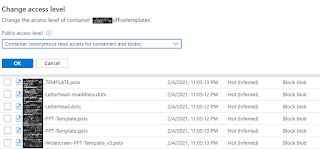
Most organizations use custom office templates and traditionally GPO would be used to configure them. However, things are evolving and traditional methods may not get you the desired results anymore. One will need a more robust method which allows you to manage the templates centrally and update the same on end user devices quickly and efficiently. I recently had a similar requirement and decided to blog about the configuration I put in place. Things that you will need – Devices enrolled into Intune. Azure Blob Storage. Onedrive for Business installed and configured for Known folder Move (KFM) Step 1 – Upload the templates in the Blob storage and set the relevant permissions. You can set it to Private to make it restrictive, but I am choosing to make it Anonymous for the Container at a granular level.   Step 2 – Create the Admin template policy to configure the custom templates location as shown below – Sign-in to the  https://endpoint.microsoft.com Browse to...

Intune: How to generate a custom xml using online office config tool for deploying Microsoft 365 apps.

Image
Recently, I needed to deploy Visio & Project as standalone apps using Intune. While Intune supports this, the installation and upgrade can be an issue if any office apps are found to be running in background. At the time of writing this blog, there is no option available in the default settings to close the apps. However, such customizations can be added using XML data instead. While one can use Office Deployment Tool to create a configuration xml, the same can be achieved using https://config.office.com . Let's see how this is done. Creating the XML Head over to  https://config.office.com Click on Create a New Configuration Select the Visio app according to your license requirements. I am using Visio Online plan 2 . Select the relevant update channel & the version. In my case, I am using Current channel with latest version. Select the additional apps that you want. In my case, I am excluding both OneDrive Groove and OneDrive Desktop . Select the relev...

How to Whitelist apps using Applocker in Intune

Image
Windows AppLocker is a technology that has been around since Windows 7 days.  In enterprise environments, it is typically configured via Group Policy, however one can leverage the XML it creates to easily build your own custom policies that perform many of the same tasks with Microsoft Intune. The only thing that one needs to be mindful of is whether you want to Deny or Allow access to a list of executables. Each of the methods have their own advantages and disadvantages, but with Allow (Whitelisting), one needs to apply extra caution as it can result in breaking of the system and cause all sort of functionality issues. I implemented a whitelist applocker policy in 2020, but never blogged about it so this is coming straight out of the archives. What all is involved? Identify a list of apps that you want to Whitelist in the XML. Model the policy that you want to implement using AppLocker in Group Policy Editor and export the XML. Use the XML to create a custom Windows 10 Devic...