Posts

Deny all access to Removable Storage using Intune

Image
  The Removable Storage Access Control feature enables you to apply policy by using OMA-URI or by using Intune user interface to either user or device, or both. Until now, I have been using Endpoint security profiles to implement device control settings to manage write access to removable drives like USB. However, recently I needed to block access to removable storage altogether and I couldn't make it work using Endpoint security ASR Device control profile. As of writing this blog, these are relevant settings that are available in the Device control profile. I expected Block Removable storage to work, but it didn't. I couldn't find any obvious errors so decided to do some research. One way is to use OMA-URI CSPs which are broadly broken down into following categories - Using Default Enforcement, you can set the default access (Deny or Allow) for all Device Control features ( RemovableMediaDevices, CdRomDevices, WpdDevices, PrinterDevices ).  Another way is to use device sto...

Removing OEM configured bookmarks from Edge

Image
I believe most will agree when I say that OEM branded configuration on Windows devices can be both unwanted and frustrating to remove. Especially when you provisioning devices using Autopilot and want to apply organization's configuration policies. I recently encountered an issue with Lenovo Windows 11 devices that came pre-installed and configured with things that the customer didn't want. While the procurement process gets worked out with the supplier to provide a clean image, I still needed to address these unwanted items. One of the items were pre-configured Edge bookmarks that had no place in the bookmarks that I was putting in place. It was obvious that they had to go.  The bookmarks are located under  C:\Users\<Userprofile>\AppData\Local\Microsoft\Edge\User Data\Default If you open it then you can match contents with what shows up in the favorites on Edge. Solution I created a simple 1 line script to delete the Bookmarks file as part of the Autopilot provisioning ...

Conundrum around Network Protection Toast Notifications

Image
  Network protection utilizes functions in SmartScreen to block phishing activities from malicious command and control sites. When an end user attempts to visit a website in an environment in which network protection is enabled, a toast notification may be presented based on the reputation of the URL. What if you don't want to give the user the ability to circumvent the blocked action at all? This is where the challenge lies, but luckily there is a way. First, let's look at the scenarios under which NP operates. 1. The URL has a known good reputation - In this case the user is permitted access without obstruction, and there's no toast notification presented on the endpoint. In effect, the domain or URL is set to Allowed. 2. The URL has an unknown or uncertain reputation - The user's access is blocked, but with the ability to circumvent (unblock) the block. In effect, the domain or url is set to Audit. The user will have access to the site for 24 hours; at which point th...

Managing Citrix Client Selective Trust settings on AAD devices using Intune

Image
Citrix Workspace app for Windows provides access to a user’s resources using Citrix Virtual Apps and Desktops. These resources include SaaS, web and legacy applications and desktops. Citrix Workspace app provides access from the desktop, start menu, Citrix Workspace user interface and web browsers. Now in an Active Directory infrastructure, Citrix Workspace app can be centrally configured using Microsoft group policies. This requires that the administrative templates (the ADMX and ADML files) for Citrix Workspace app are copied to your Group Policy Central Store. Part of these setting include configuring  Client Selective Trust registry keys which allows controlling the user permission prompts in a Citrix session related to access of resources on the device like local drives, webcams, microphones etc. But how does one address this on devices that are Azure AD joined only? If you are managing devices using Intune, then one can using PS scripts to configure the necessary registry ke...

Enable Safe Browsing in Google Chrome using Intune in Windows Devices

Image
  While working with Google Chrome admx policies, a feature called  Safe Browsing  caught my attention. After doing some research I decided to blog my thoughts on it and how it can be enabled using Intune. What is Safe Browsing? Safe Browsing helps in protecting against phishing, social engineering, malware, unwanted software, malicious ads, intrusive ads, and abusive websites or extensions. Chrome contacts Google's servers periodically or real-time (depending on the protection level) to download the most recent Safe Browsing list of unsafe sites and is stored locally in the system. Chrome checks the URL of each site visited or file that is downloaded against this local list.  When Chrome starts, and on each update of the Safe Browsing list, Chrome scans extensions installed in the browser against the Safe Browsing list. If an extension on the list is found, Chrome will disable the extension. Different levels of Protection are -  Enhanced protection (Recomm...

Enabling Windows 11 22H2 Core Isolation Memory Integrity feature using Intune

Image
In Windows 10 and 11, the operating system can provide protection from malicious code by isolating certain processes in the PC’s memory using virtualization on supported hardware. This protection runs under Memory Integrity under Core Isolation feature. With Windows 11 22H2, Microsoft made this feature default. However, as of writing this post, Memory Integrity will only turn on new devices by default. For existing devices upgrading to Windows 11 22H2, the feature will need to be managed separately. Memory integrity is also known as Hypervisor-protected Code Integrity (HVCI). Being a device guard feature, it hasn't made to the dedicated security profiles under Endpoint Security Attack Surface Rules in Intune as a standalone policy. Official documentation by Microsoft suggests that it can be enabled as part of Applocker Code Integrity CSP .  Alternatively, one can also enable it through the Applocker policy in Application control ASR, if you want to enable Applocker policy as a w...

Configuring Adobe Acrobat Reader DC policy settings using Intune for AAD devices

Image
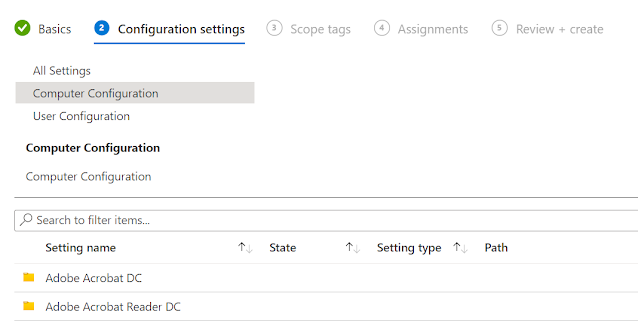
I recently had a requirement for setting up policies for Adobe Acrobat Reader DC to lockdown and configure some features against Autopilot provisioned AAD devices. Adobe does provide GPO templates, but what's astonishing is that these templates do not support all the settings. According to Adobe, the templates are basic starter templates containing the most important setting and are broadly spread across the following categories: 1. General enterprise settings: Features such as disabling updates and setting the default PDF handler. 2. Security: Application security features such as enhanced security, sandboxing, and JS controls. 3. TrustManager: Trusting Windows OS security zones as defined in Internet Explorer. 4. Digital Signatures: Adobe Acrobat Trust List integration. I imported the templates in Intune to check what all policies are supported in Intune and there were only a handful settings. According to Adobe, one can use Preference Reference to extend the templates, but this...